
Google review badges, ratings and stars: display options compared

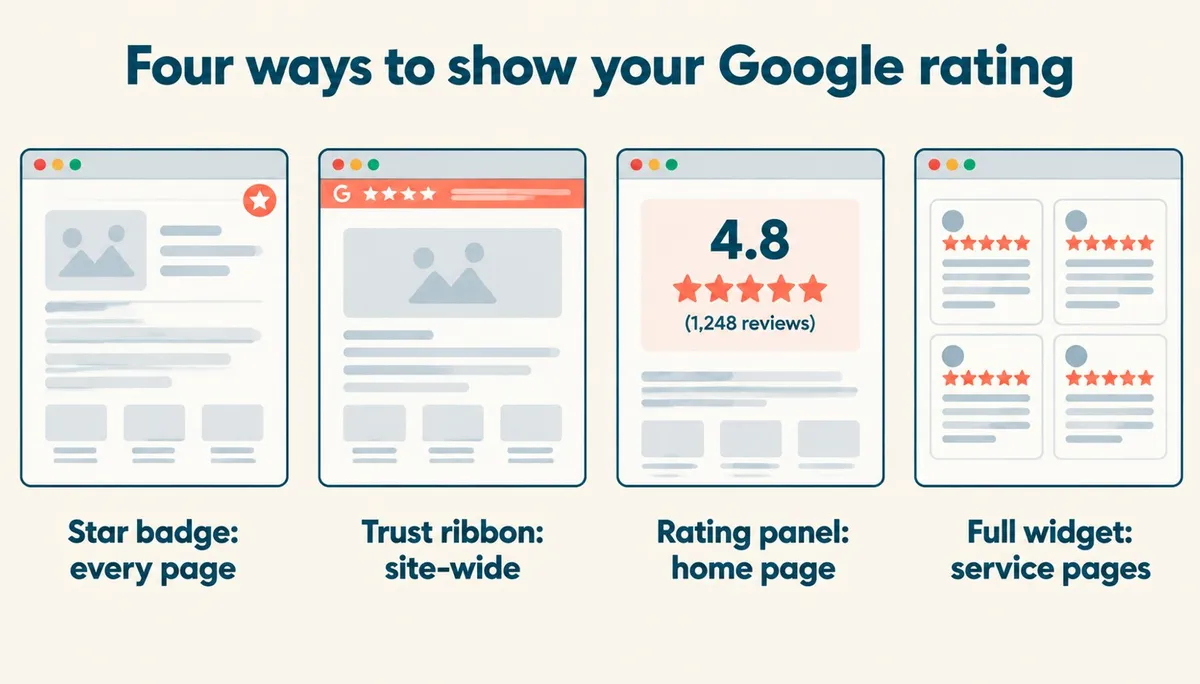
A Google reviews badge is the smallest way to show your official Google rating and stars on your website. Use a badge or trust ribbon for site-wide proof, a rating panel on your home page and a full review widget on service pages. Google won't show search stars for your own reviews, so choose a display for visitors, not for search results.
What a Google reviews badge does
A Google reviews badge gives visitors instant proof without taking space from your content. It shows your star rating, your total number of Google reviews and a Google credit. A click opens your full reviews, so people who want detail can read them and everyone else keeps browsing.
Badges sit alongside other ways to show your rating: a slim bar across the page, a large rating panel and a full review widget. Most websites use two of these together, such as a badge on every page and a full widget on the pages where people decide.
Google rating display options compared
Each option suits a different job. The table compares the four main ways to add your Google rating to a website, and the layout name to look for in the editor.
| Option | Editor layout | Best for | Plan |
|---|---|---|---|
| Corner badge | Star badge | Every page, small and out of the way | Paid |
| Bar across the page | Floating Sticky Trust Ribbon | Site-wide proof at the top or bottom | Paid |
| Large rating panel | Ratings section or Proof & Metrics Spotlight | Home page and landing pages | Paid |
| Full review widget | Grid or List | Service, product and contact pages | Free |
Star badge
The Star badge is a compact rating badge that opens a full review panel. Set its corner with Badge position. It is the closest match to a classic "Google reviews badge" and works well on mobile because it stays small.
Trust ribbon
The Floating Sticky Trust Ribbon is a slim top or bottom bar showing your rating, which opens the full reviews panel when clicked. Use it when a corner badge would cover a chat button or cookie banner.
Rating panel
The Ratings section shows a bold rating beside review cards, and Proof & Metrics Spotlight adds large counters with rotating quotes. Both suit a home page where you want the rating to be the first thing people see.
Showing your official Google rating and total
Visitors compare your website with Google Maps. If your site says 4.9 from 20 reviews and Google says 4.7 from 65, trust drops. A good Google rating embed pulls the official rating and total from your Business Profile, even when the widget only loads some reviews.
- Official totals: the rating and count match your Google profile.
- Filters stay honest: a Minimum rating filter changes which reviews show, not your rating.
- Reviews you add yourself appear separately and never change Google's official figures.
- Credit: each widget shows a short Google credit and links reviews back to Google, as Google's attribution rules require.
Want to see how new reviews move your average? Try the star rating calculator.
Google review snippets and stars in search results
Many people add a Google review badge hoping for gold stars in search. Since September 2019 Google does not show review stars for a business's own reviews on its own site, which it calls self-serving reviews. This covers LocalBusiness and Organization pages.
Review markup is still valid and can help Google understand your page, and stars can still appear for eligible types such as products or recipes. Google always decides whether stars show. Our star rich snippets feature explains the markup in detail.
Skip the reading — build your widget now
Free plan, no credit card. Your reviews are embedded before you finish this guide.
How to add a Google rating badge to your website
- Create a free account and search for your business name to add your Google reviews.
- Choose a layout: Star badge, Floating Sticky Trust Ribbon, Ratings section, Grid or List.
- For a badge, set Badge position to the corner that doesn't cover other buttons.
- Match your colours, corners and fonts under customisation.
- Copy the one-line embed code and paste it into your site's code or HTML block. A badge only needs adding once, in a site-wide footer or header area.
- Publish, then check the badge on your phone.
New to embedding? Start with our Google reviews widget page.
Alternatives to star ratings
Stars aren't the only way to show trust. If your design is minimal, or your rating is still building, try these instead:
- A customer quote in your hero section, with the reviewer's first name.
- Your review count, such as "65 Google reviews", which signals experience.
- A photo review, using the Photo review hero layout.
- Reviews by topic, using Topic Matrix to show what people say about service or value.
Where to place your badge and rating
Put site-wide proof (badge or ribbon) where it's always visible but never blocks a button. Put the full widget close to the decision, such as beside a booking form or under pricing. See where to place reviews on your website and our guide to carousel and feed layouts.
Sources & further reading
- Google Search Central: Review snippet structured data — Eligibility rules, including self-serving reviews
- Google Search Central blog: Making review rich results more helpful (2019) — Why businesses don't get stars for their own reviews
- Google Maps Platform: Attribution requirements — How Google content must be credited
- Google Business Profile Help: Tips to get more reviews — Official review guidance
- Google reviews
- Badges
- Star ratings